In detail
Hide private info before you share
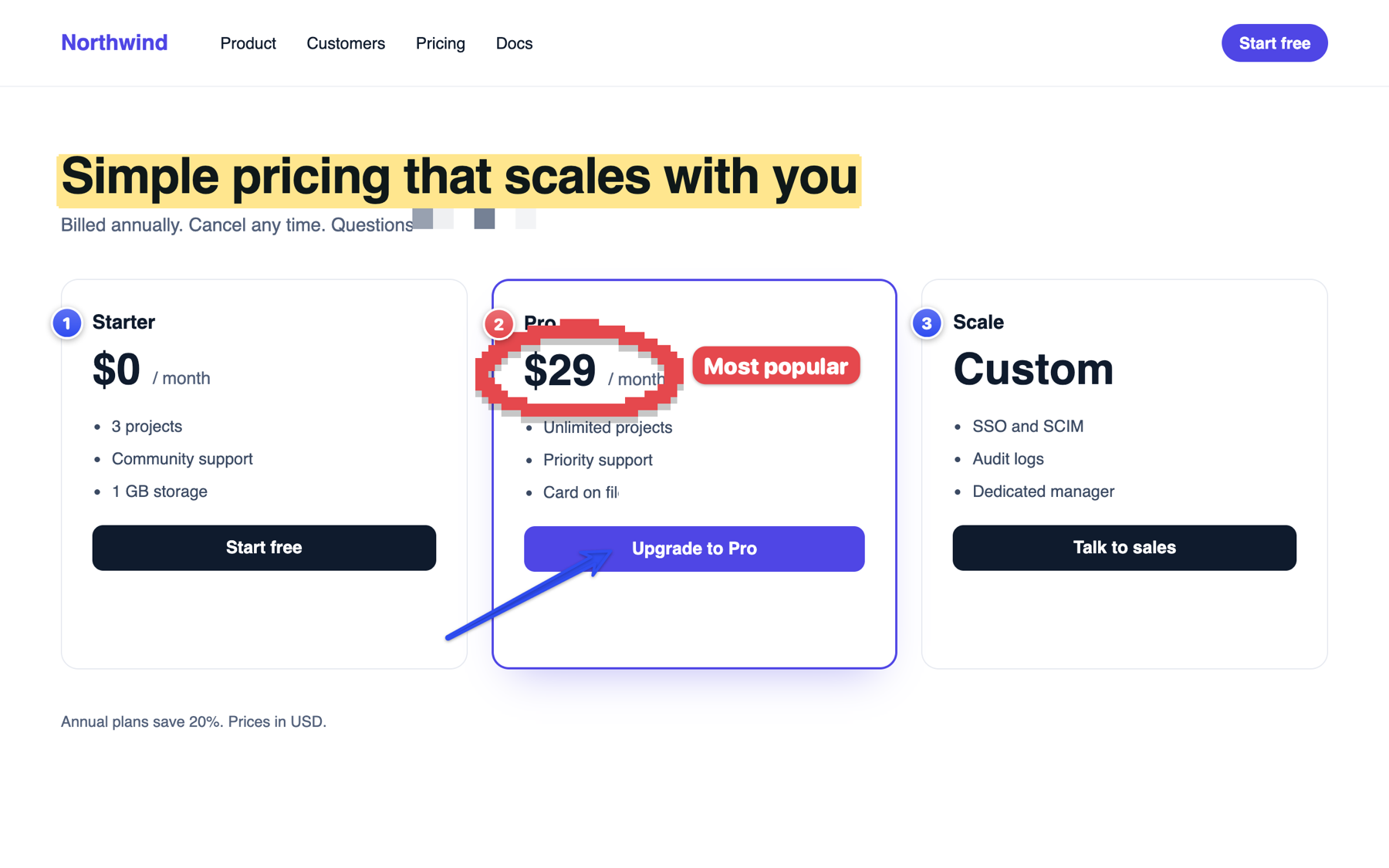
Clevershot already knows where the private details in a screenshot are, because it has read the text. Redact hides every email, phone number, card number, key and password in one click, as pixelate, blur or a solid bar, and safe copy copies the screenshot with them blurred while the original stays untouched. Safe copy is a switch, off by default, so you can still share an email or a statement exactly as it is.
Two ways
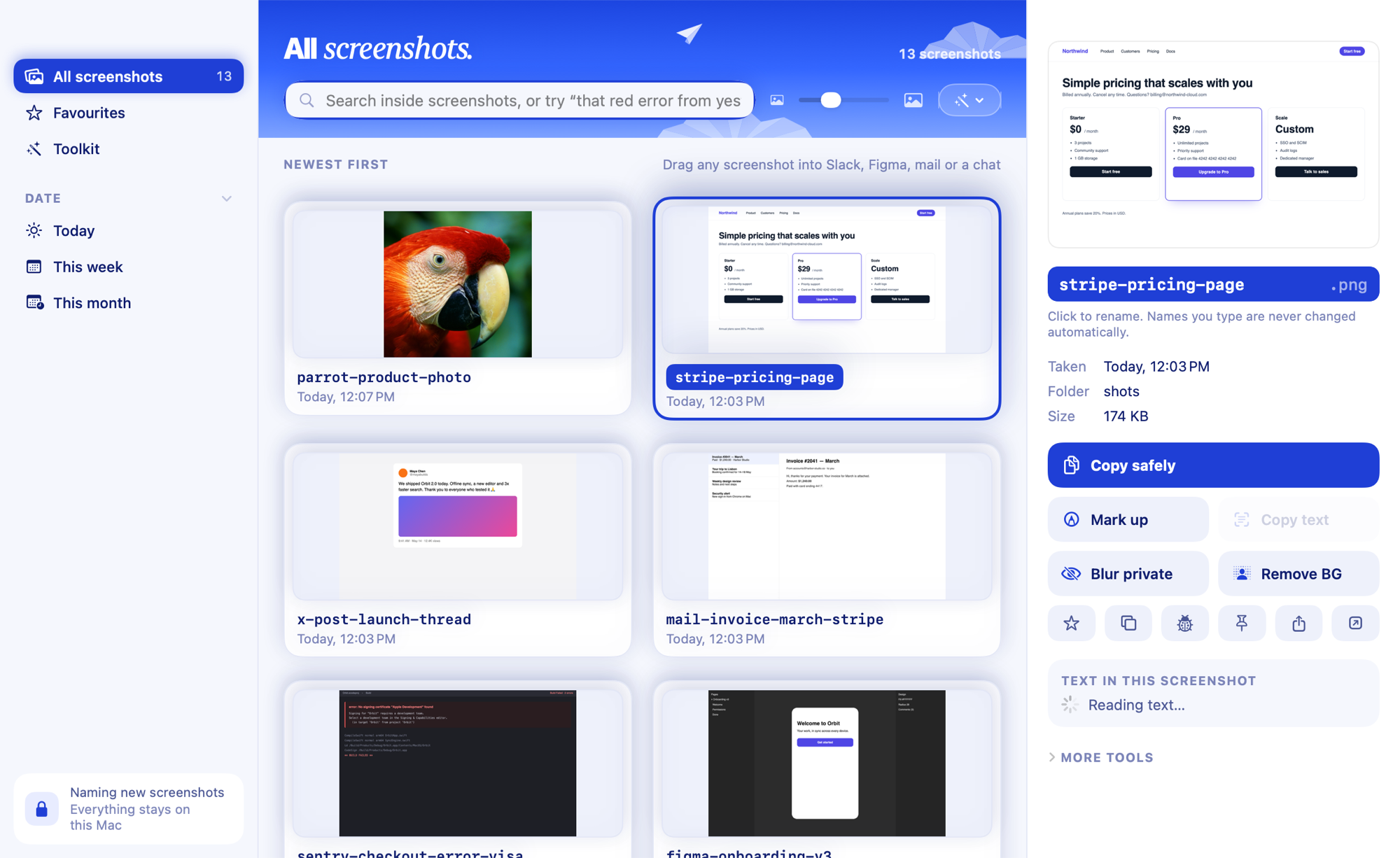
- Safe copy: turn on Blur private info when copying in Settings or the ••• menu, and Copy (or ⌃⌥⌘C) blurs them every time. Or right-click a screenshot in the library and choose Copy with Private Info Blurred just once.
- Redact in the editor: one click hides everything it found, and you can drag over anything else, like a face or a name.
What it finds
- Email addresses
- Phone numbers
- Card numbers
- API keys, tokens and passwords
- Faces (for safe copy and Blur)
Hidden for real
Blocks are sized to each piece of text and the corners of every area are fully covered, so the text can't be read back from the copy. Or choose a solid bar. The original file is never changed: the editor saves a copy next to it.
Questions
Does it work without Apple Intelligence?
Yes. Finding private details uses the text Clevershot reads on your Mac and simple rules, not the AI.
Can I turn off blurring on copy?
It's off unless you turn it on, in Settings or the ••• menu ("Blur private info when copying"). Off, Copy and ⌃⌥⌘C copy the screenshot exactly as it is. To blur just once, right-click a screenshot in the library and choose Copy with Private Info Blurred.