Capture⇧⌘2
Capture it your way.
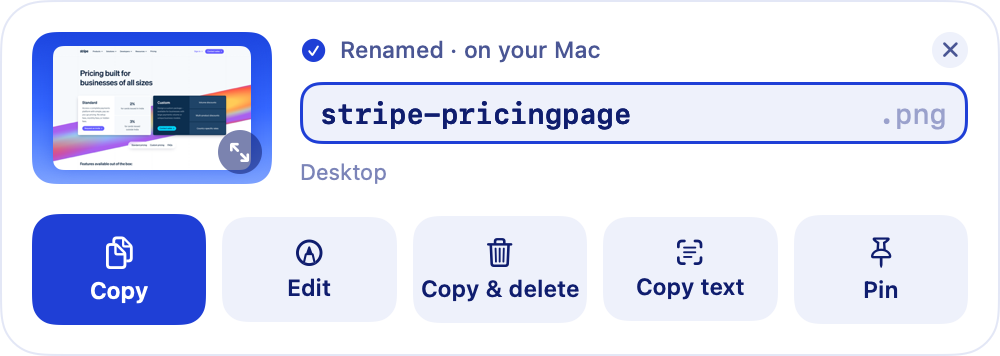
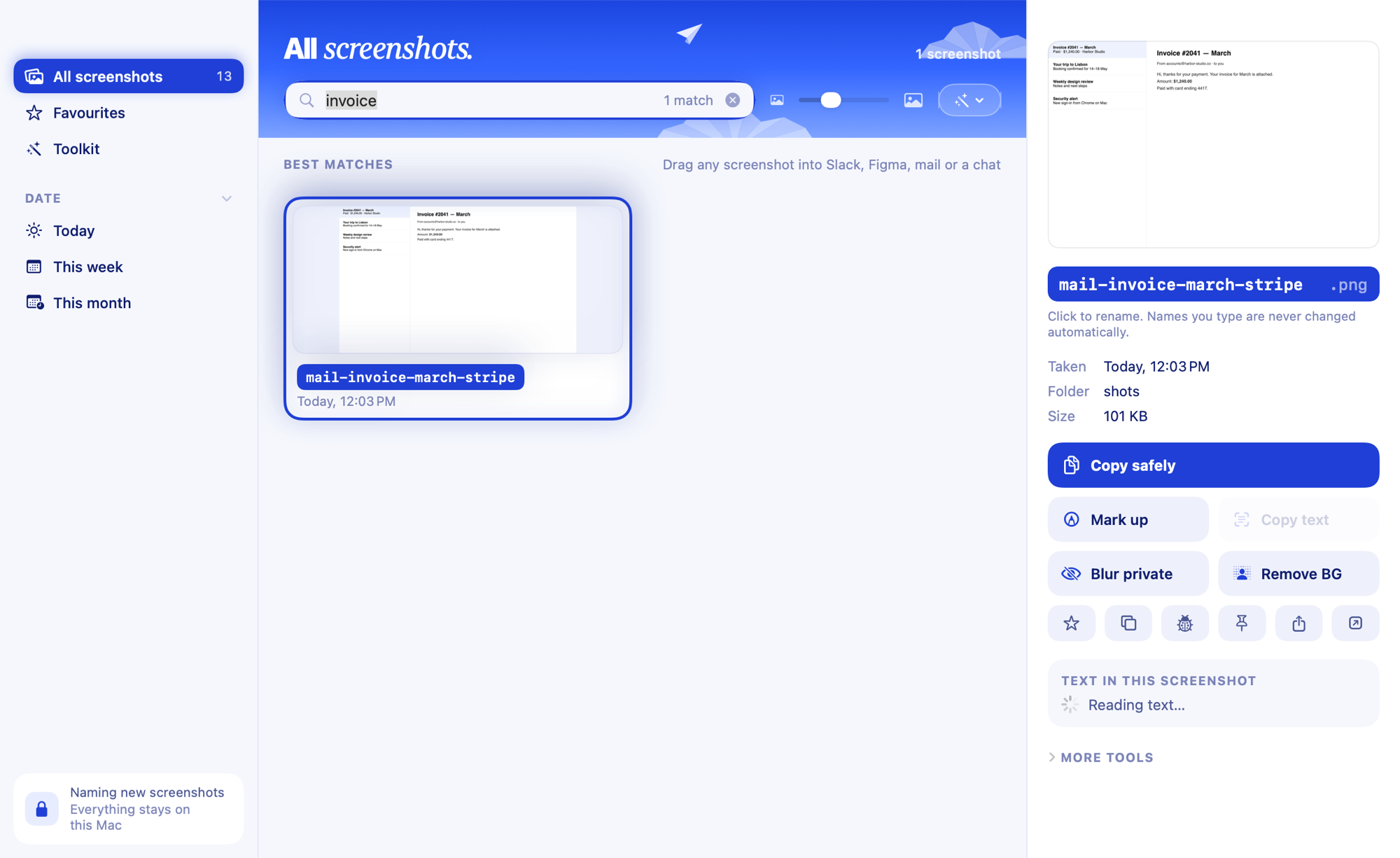
Press ⇧⌘2 to drag out an area or click a window, or ⇧⌘1 for the whole screen. The screen freezes while you choose, so what you select is exactly what is saved. Clevershot still names it by what's in it.
How it works.
- 1Self-timerCapture in 3, 5 or 10 seconds, from the menu or a shortcut you set. Esc, or pressing it again, cancels.
- 2Repeat last areaOne shortcut takes the same rectangle again, with no overlay.
- 3Pixel rulerPress M in the overlay and drag to measure in points or pixels (P). Shift keeps it straight.
- 4Magnifier and colourL shows a magnifier with the pixel boxed. Tab copies its colour as hex.
- 5Desktop icons hiddenA Settings switch hides them while you capture, so the wallpaper shows instead.
Get it for your Mac.
Clevershot is a $11 Mac menu bar app that automatically names, organises and searches your screenshots, entirely on your Mac. It's $11 once at launch, $19 after. One licence key, no subscription, and a 7-day money-back guarantee if it isn't for you.
Questions
Can I change the shortcuts?
Yes. Pick any shortcut for each capture in Settings, or switch one off. macOS doesn't say when another app uses the same keys, so if a shortcut does nothing, pick another one.
Does it replace ⇧⌘4?
Only if you want it to. Clevershot works alongside ⇧⌘3, ⇧⌘4 and ⇧⌘5, and can take them over once you switch macOS's off in Keyboard Shortcuts.
How do I stop a timer?
Press Esc, or press the timer shortcut again.